
A Small Thank You: Military & First Responder Discounts
Simply Michigan Infotainment proudly offers special savings to active and retired military members and first responders. Learn who qualifies and how to request your discount code safely.

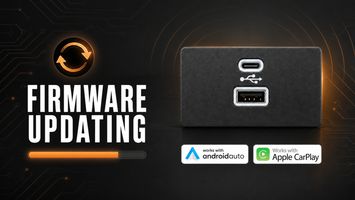
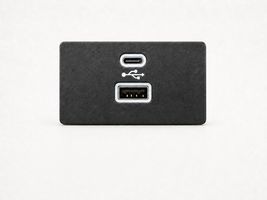
Our new USB-C Hub with built in Apple CarPlay and Android Auto can be updated over the air (OTA), and it's super easy to do. Whether you're having some sort of issue with the hub or if you just to like to make sure everything is always updated, here are steps you need to take to do it.
Updating Instructions
Step 1: Make sure you're connected to the adapter via WiFi. Typically the network name starts with "Sync3" then there's a series of letters and numbers after, for example: Sync3_3E70. If it asks you to enter a password, type in 12345678.
Step 2: Go to your web browser and type in 192.168.43.1 and it should take you to the update screen.
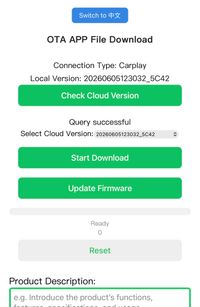
Firmware updating page
Instructions continued...
Step 3: You should come to this screen (pictured above). The local version is the version that's installed on your USB Hub currently. Click check cloud version button to see if there's an update available.
Step 4: If there's a new version, it will be displayed under the query successful text. If this version is different than the version you currently have installed, then it's a new update. If it's the same, then you're already on the latest available version.
Step 5: Click start download to download the firmware update to the USB. Once it's finished, click the update firmware button. It'll automatically install and will restart when it's finished. Apple CarPlay and Android Auto will cut in and out if you're connected.
Step 6: Refresh the page and your local version should have changed to the new version and you should be done with the update.